dashboard-screenshot

1. Cards

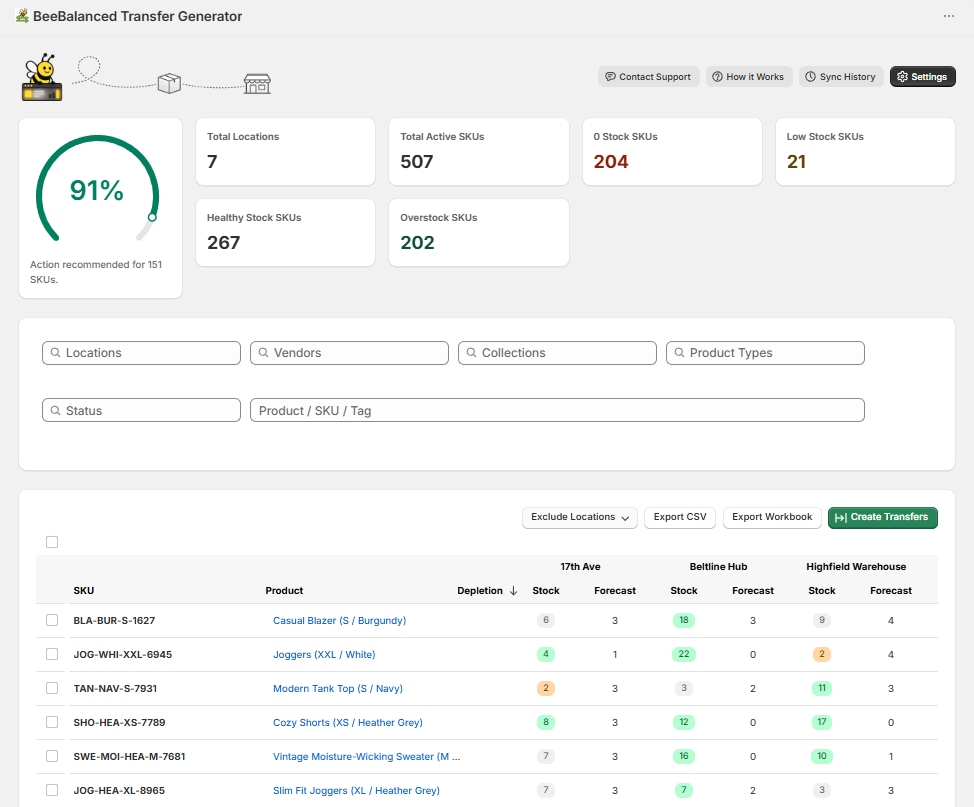
Cards at the top of the dashboard help gauge how well your inventory is balanced.

2. Inventory Table

Shows Stock and Forecasted sales for all Active products in the store at each location.

3. Settings

Customize data in the inventory table and quantities when generating transfers.

4. Filters

Narrow down products and locations.

5. Generate Transfers

Instantly generate draft transfers on Shopify, or export values to a csv file which can be imported to Shopify.

Two Ways to Move Stock

Evenly distribute inventory across multiple locations by generating inventory transfers using stock, forecasted sales, and adjustable settings.

Generated transfers only consider products that are included in the user’s chosen filters and selections.

1. Create Transfers

Instantly creates draft transfers on Shopify.

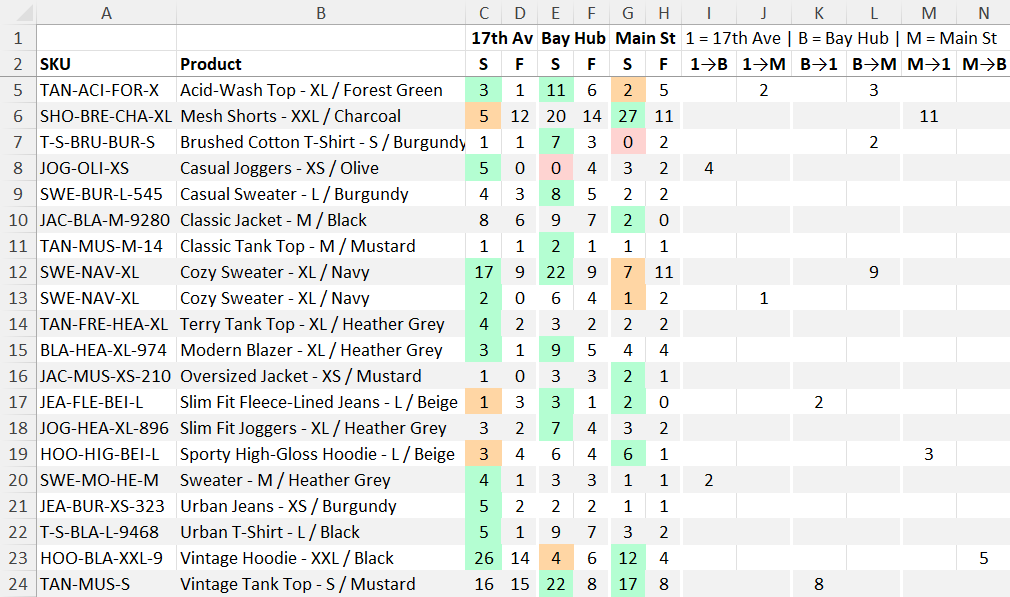
2. Export CSV

Creates a spreadsheet with the same values as the inventory table, and the same quantities that would have been generated with ‘Create Transfers’.

Settings

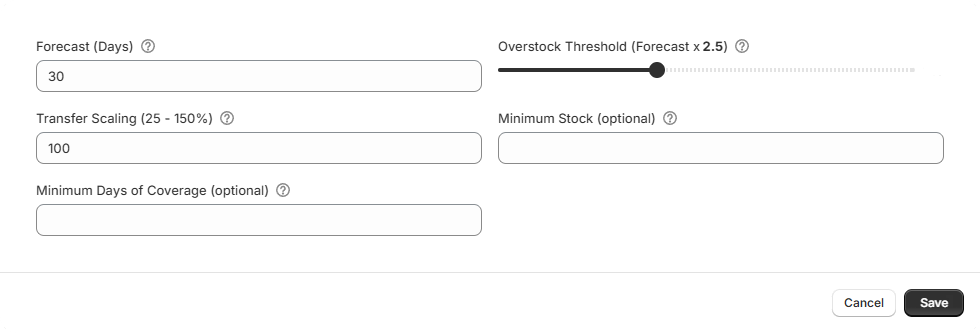
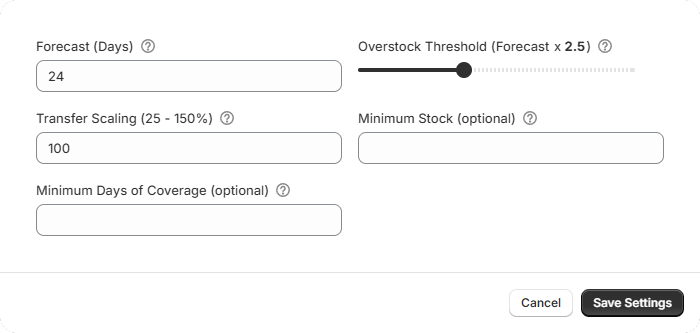
Forecast (Days)

Sales data is analyzed to estimate how much of a product will sell over the next designated number of days. Ignores out-of-stock days for improved accuracy.

Overstock Threshold (Stock × Forecast)

Determines which products are overstock. A product with 3 Stock and 1 Forecast will be considered overstock if the threshold is set to 2, but not 4.

Locations will receive less of a product that is considered overstock when generating transfers. Products that have stock 1.5x or greater than the Overstock Threshold will not be transferred.

Transfer Scaling (25–150%)

Quantity of products that will be transferred. Lower values transfer less, higher values transfer more.

Minimum Stock (optional)

 Generated transfers will not move quantities below this value.

Minimum Days of Coverage (optional)

Generated transfers will not move quantities below the designated number of days of coverage based on stock and forecast.